Forgetting an app-control password is stressful because the wrong recovery design creates two bad outcomes: either anyone can bypass the password, or the legitimate owner can never regain control. Free App Lock uses a saved recovery code for the normal recovery path and an explicit local-data reset as the last resort.
This guide explains both choices, what each one changes, and how to avoid locking yourself out again.
The short answer
- If you still have the recovery code, choose Forgot master password?, verify the code, create a new master password, and save the newly rotated recovery code.
- If you have neither the master password nor the recovery code, choose Reset local data. This clears the active credentials, protected-app list, preferences, and activity and returns the app to first-run setup.
- Free App Lock cannot display the forgotten password. The stored credential is designed for verification, not reversible password recovery.
After access is restored, follow the practical Windows app-lock guide to review each executable path, policy, schedule, and identity setting.
Before you reset anything
Look for the recovery code in the place where you saved it during setup: a password manager, printed emergency sheet, or another private record. A Free App Lock recovery code uses grouped uppercase letters and numbers. Do not share it publicly or paste it into an unrelated website.
If another person administers the PC, ask that owner before using local reset. Resetting removes the active protected-app configuration and is intentionally visible and consequential.
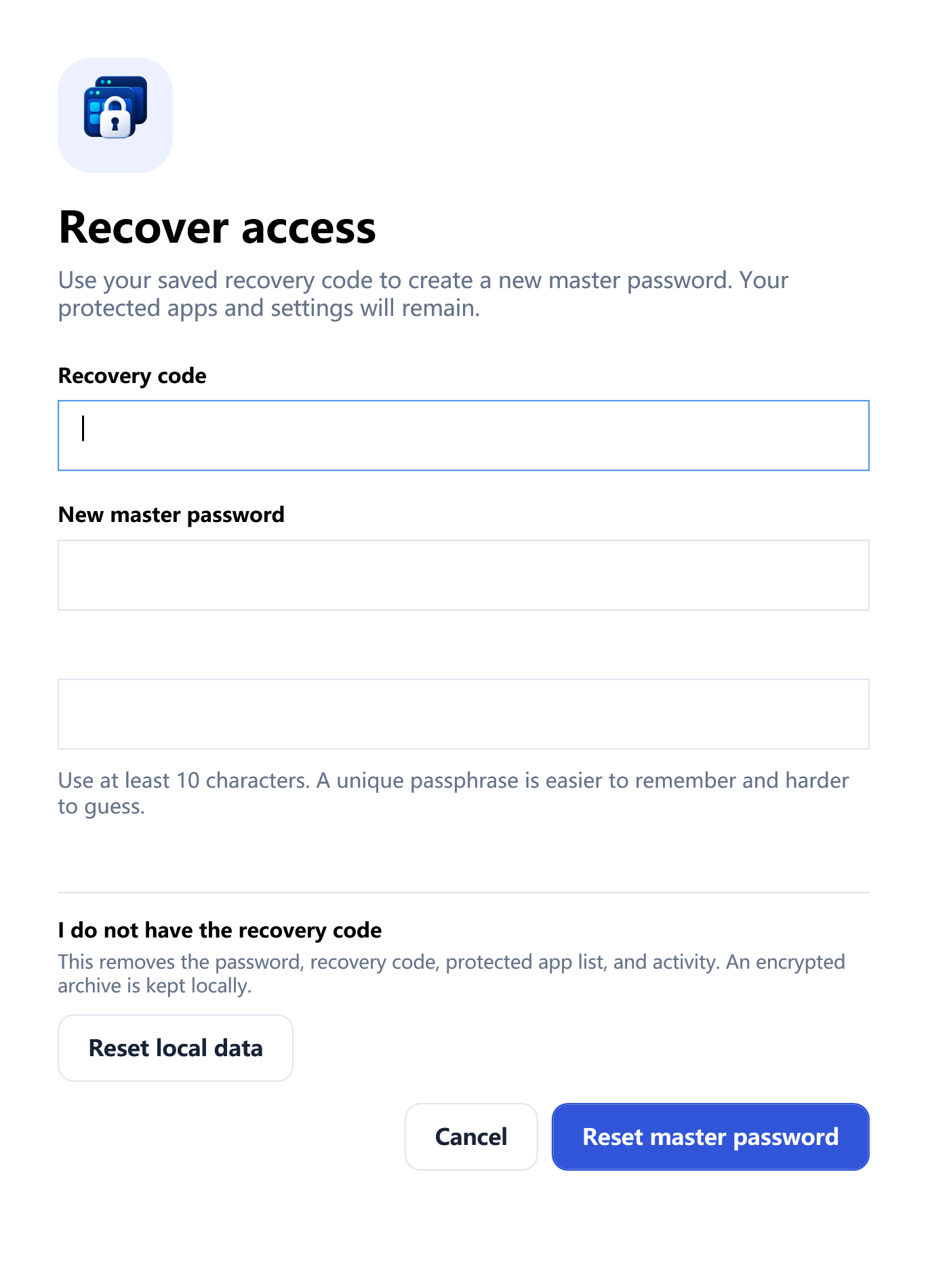
Recover access with the saved recovery code
- Open an owner-verification window in Free App Lock.
- Select Forgot master password?.
- Enter the saved recovery code.
- Create and confirm a new master password.
- Submit the recovery form.
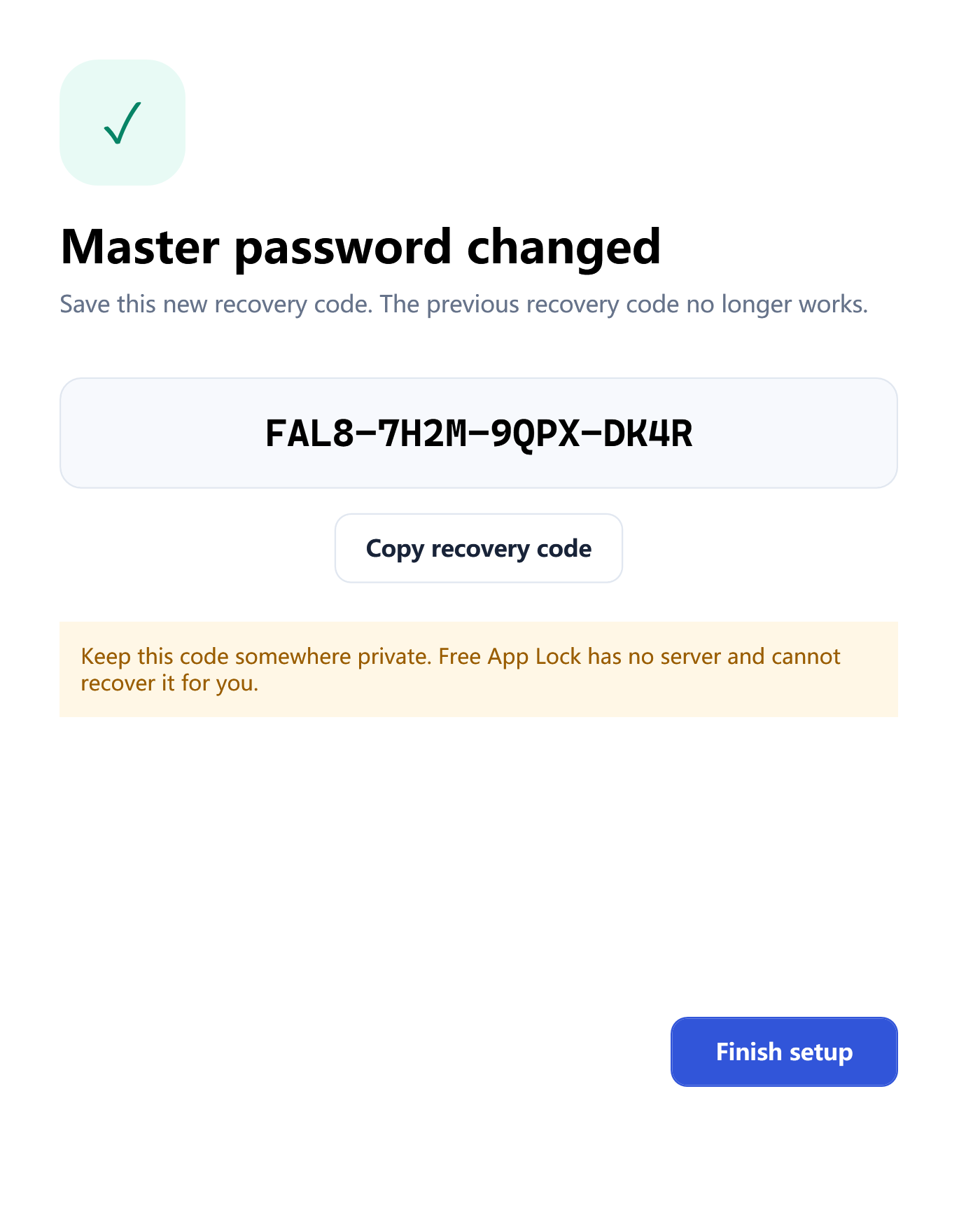
- Copy the newly generated recovery code and store it securely.
- Select Finish.
Successful recovery rotates both credentials. The old master password is replaced, and the recovery code you just used is replaced by a new one. Existing protected applications, policy choices, schedules, settings, and activity remain available.
Why the recovery code changes
A recovery credential should not remain reusable after it has served its purpose. Rotation means a copied old code does not stay valid indefinitely after recovery. The new code becomes the only recovery record you should retain.
Write it down before closing the success screen. If you copy it to the clipboard, paste it immediately into your chosen secure storage and then clear the clipboard or copy something non-sensitive over it.
What happens after several incorrect attempts?
Free App Lock applies bounded retry delay to owner verification. Repeated guessing does not create a faster bypass route. Stop and verify the saved code rather than trying random combinations.
If both the password and recovery code are lost
Select I do not have the recovery code, read the warning, and choose Reset local data only when you accept the consequences.
The reset clears the active:
- master-password credential;
- recovery credential;
- protected-app list and policies;
- startup preference;
- local activity history.
Free App Lock then returns to first-run setup, where you create a new master password and recovery code.
What local reset preserves
Before creating the new empty configuration, Free App Lock preserves verified encrypted copies of the previous configuration under unique .forgotten-* names in its local data directory. These copies can help with incident diagnosis or recovery engineering, but they do not reveal the old password and are not automatically restored into the active app.
This is a safety measure, not a promise that the old configuration can always be recovered. If the protected list is important, keep your own current policy export in a safe location.
What local reset does not do
- It does not recover or show the forgotten master password.
- It does not decrypt an old password from storage.
- It does not include passwords or recovery codes in policy exports.
- It does not delete or alter the protected application executables themselves.
- It does not turn Free App Lock into an administrator-resistant security boundary.
Where Free App Lock stores local data
Configuration and activity are stored under the current Windows profile in %LocalAppData%\FreeAppLock. The application uses local storage and does not require a Free App Lock account. Uninstalling program files does not automatically erase every local configuration record; if you intentionally want full removal, uninstall first and then delete that directory after verifying you no longer need its contents.
Prevent the same problem next time
- Save the new recovery code before leaving the recovery screen.
- Store the master password and recovery code in separate records.
- Do not reuse either value for Windows, email, or financial accounts.
- Export policies after meaningful configuration changes. The export excludes credentials and activity.
- Test the new master password once with a non-critical target.
- Review who has access to the same Windows account; equivalent user authority can stop or reconfigure a user-mode monitor.
Troubleshooting
The recovery code is rejected
Check every group and character. The code uses characters chosen to reduce visual ambiguity, but spaces, missing groups, or an older code from before a previous recovery can still cause rejection. The most recently rotated code is the one that matters.
I completed recovery but did not save the new code
While you still know the new master password, open the app and create a fresh owner-controlled setup plan immediately. Do not wait until the next emergency. If the interface offers no direct “show existing code” action, that is intentional: recovery secrets should not be retrievable as plain text after setup.
Can support tell me the password?
No legitimate support process should ask for, know, or reveal your master password or recovery code. Free App Lock is local software; there is no cloud account database containing your password.
Final checklist
- Recovery succeeded with the current recovery code.
- A new unique master password was created.
- The rotated recovery code was saved privately.
- Existing policies were reviewed after recovery, or rebuilt after local reset.
- A non-critical app was used to test the expected policy behavior.