
You add an application to Free App Lock, start it, and the result is not what you expected. Perhaps it stays open, the password prompt does not appear, the policy works only sometimes, or a recent update changed the behavior. Reinstalling immediately is rarely the best first step.
Work through these checks in order. They separate configuration mistakes, application updates, schedule boundaries, Windows-account issues, and the known limits of after-start monitoring.
First: understand the expected behavior
Free App Lock is a per-user, after-start monitor. Windows starts the configured executable, then Free App Lock detects it and applies password approval or direct denial. This means the target can appear briefly and early code or side effects can occur. The product is not a kernel driver, Windows service, pre-execution allowlist, or administrator-resistant security boundary.
If your requirement is “this code must never begin executing,” use a properly designed Windows App Control or AppLocker policy instead of troubleshooting a user-mode monitor as if it were pre-execution enforcement.
1. Confirm that Free App Lock is still running
Open the dashboard and read the current monitoring status. If monitoring is paused, resume it. If Free App Lock was exited, start it again. A policy stored on disk cannot enforce itself when its user-mode monitor is not running.
Also check whether a cleanup utility, startup manager, or another user closed the app. Free App Lock does not install hidden persistence or a Windows service.
2. Check the active Windows account
Configuration belongs to the current Windows profile. If you configured the rule in one account and launched the target in another, you are testing a different user context. Sign in to the intended account and verify the protected list there.
On a shared PC, use separate Windows accounts. Do not expect one per-user monitor to become a machine-wide policy merely because multiple people use the same computer.
3. Verify the exact executable path
A Start-menu shortcut, desktop shortcut, launcher, updater, helper, and main executable may all point to different files. Open the protected-app record and compare it with the process that actually runs.
Common examples:
- a game launcher starts a different game EXE;
- a browser has separate stable, beta, and portable paths;
- a 32-bit app moves between
Program Files (x86)and a per-user directory; - a Store app uses packaged-app infrastructure rather than the desktop EXE you selected;
- an updater replaces a small launcher but the real application runs elsewhere.
Add the real target executable after checking its publisher and location. Do not indiscriminately add every process in an application directory.
4. Review the weekly schedule
A scheduled policy only applies during its selected days and times. Check the current day, start time, end time, and whether the interval crosses midnight. An overnight rule belongs partly to the day on which it starts and should be tested on both sides of midnight.
Temporarily disabling the schedule can help isolate whether matching or timing is the problem. Restore the intended schedule after the test.
5. Confirm approval versus direct deny
Password approval and direct denial produce different visible results. Approval should show an owner-verification prompt. Direct denial should close the target without offering that prompt.
If someone expects a password window while the policy is configured for direct deny, the control may be working exactly as saved. Open Edit policy and verify the selected mode.
6. Check for an executable identity warning
When optional file-identity verification is enabled, Free App Lock records a SHA-256 identity. A legitimate software update can replace the executable while keeping the same path. The rule then needs owner review instead of silently trusting a different file.
Confirm the update came from a source you trust and inspect its publisher before selecting Trust current file. Do not use that action merely to remove a warning you have not investigated.
7. Look at the local activity record
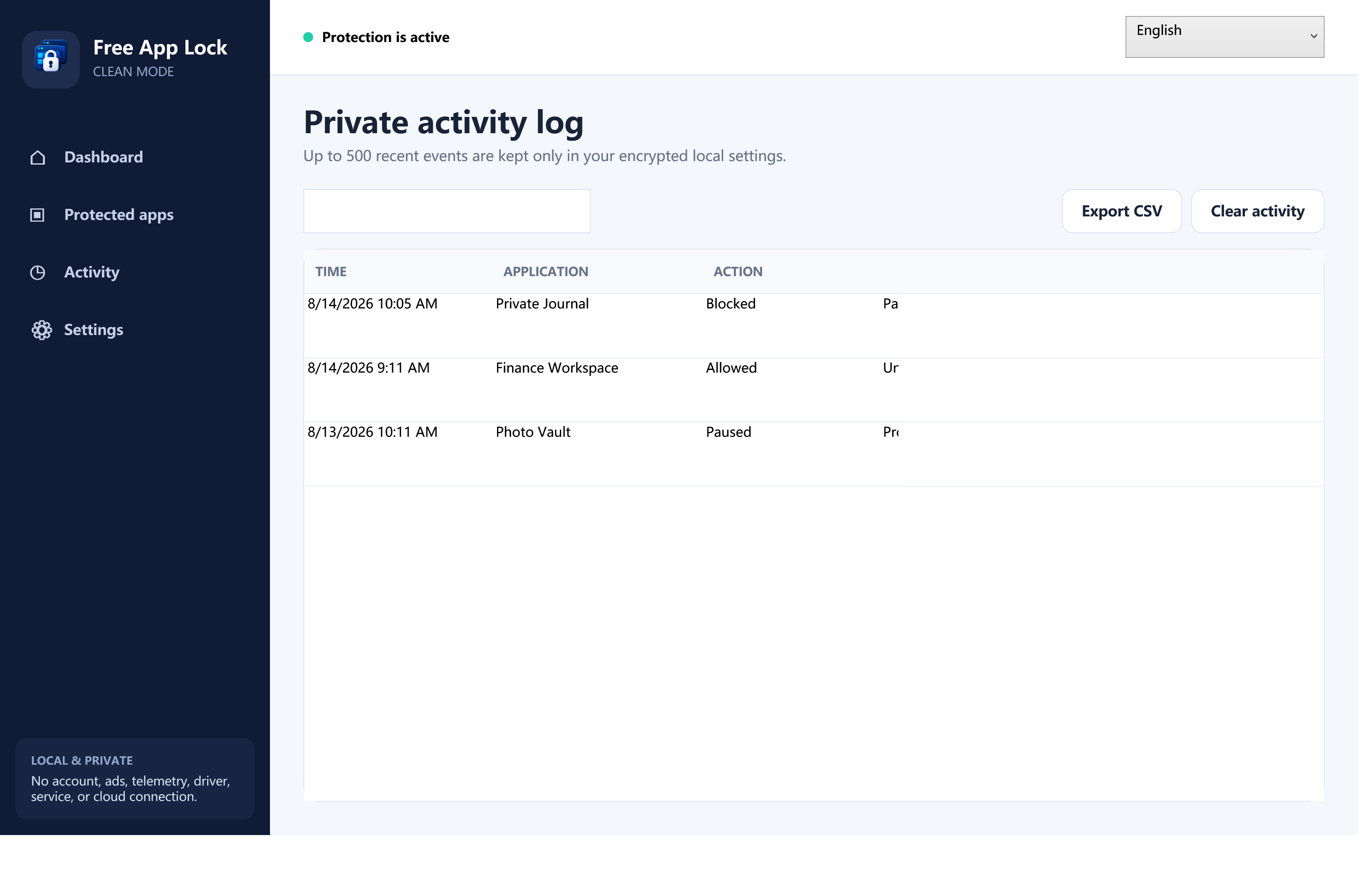
The activity page can show whether the target was detected, approved, denied, skipped because a policy was inactive, or marked for identity review. Search for the application name and compare event time with the schedule.
History is bounded to 500 local events. It is a diagnostic aid, not an immutable enterprise audit log. Export formula-safe CSV when you need to review a current incident outside the app.
8. Test after closing existing target processes
If the target was already running before a policy changed, close it safely, save all work, and test a fresh start. Some applications keep background helpers alive after the visible window closes.
Never repeatedly force-close an application that is writing a document, database, archive, or media file. Process termination can interrupt writes and damage unsaved work.
9. Check whether the target relaunches itself
Some launchers, updater services, or watchdog processes automatically restart a closed component. Free App Lock may close the configured EXE while another component starts it again. Identify the real workflow before adding more rules.
If a product uses a privileged service or multiple self-repairing processes, a per-user desktop monitor may not be suitable. Use the vendor’s own parental/administrative controls or a managed Windows policy.
10. Verify that another instance or configuration is not confusing the test
Use the currently installed Free App Lock and one intended Windows profile. Avoid testing an installed copy and a portable copy against different local-data paths at the same time. Check the About/version information and close obsolete copies.
If you recently imported policies, verify every imported path on this PC. Policy exports intentionally omit passwords, recovery codes, and activity, and drive letters can differ between computers.
11. Review owner authentication and recovery
If the master password is rejected, stop repeated guessing. Choose Forgot master password? and use the current saved recovery code. Successful recovery creates a new master password and rotates the recovery code while preserving policies.
If both credentials are unavailable, local reset clears the active policies and returns to setup. That is a configuration reset, not a method for displaying the old password.
12. Update carefully—then retest one harmless app
Download Free App Lock only from the official website. Preserve your recovery code and, if useful, export policies before changing versions. Test one non-critical executable first and verify the local activity record before restoring a larger set of policies.
The small installer is framework-dependent and requires Microsoft .NET Desktop Runtime 8 x64. If that runtime is missing, the installer can use Microsoft’s official runtime download. A runtime installation problem normally prevents Free App Lock itself from starting; it does not selectively break one protected-app rule.
When to stop troubleshooting Free App Lock
Choose another control when you need any of the following:
- guaranteed blocking before target code executes;
- resistance to the same Windows user or a local administrator;
- central policy across a fleet;
- driver and script trust policy;
- security-grade tamper resistance or immutable audit evidence.
Microsoft describes AppLocker as defense in depth and recommends Windows App Control when robust protection is the goal. Matching the tool to the requirement is more reliable than hiding a boundary behind a stronger-sounding label.
Diagnostic checklist
- Free App Lock is running and monitoring is active.
- You are signed in to the Windows account where the rule was configured.
- The protected path is the real executable, not only a shortcut or launcher.
- The current day and time are inside the configured schedule.
- The selected mode is approval or direct deny as intended.
- No unresolved file-identity replacement is present.
- The target and its background helpers were closed before a fresh test.
- The local activity record matches what happened.
- No second installed/portable configuration is confusing the test.
- The requirement is compatible with after-start, per-user monitoring.
Official reference
Microsoft Learn: AppLocker overview and security-positioning note
If the issue is a forgotten credential rather than policy matching, follow the Free App Lock master-password recovery guide.