
A shared Windows PC fails in predictable ways: everyone uses the same administrator account, important applications stay signed in, children can open work tools, and nobody knows which restriction is active. Adding an “app lock” without fixing those foundations can create more frustration than safety.
This practical plan starts with Windows account separation, then shows where Family Safety, Free App Lock, and managed Windows policy can fit. The goal is a PC that remains understandable, recoverable, and usable—not a pile of restrictions that only the installer remembers.
1. Give each person a separate Windows account
Do not use one shared administrator profile for parents, children, guests, and work. Separate accounts isolate each person’s desktop, browser sessions, app settings, recent files, and local application data. Make everyday accounts standard users when administrative access is not required.
An app-control utility running in one profile is not a substitute for account separation. Someone with the same Windows authority can often stop or reconfigure a user-mode monitor, and an administrator has broader control.
2. Write the rule in plain language
Before installing anything, write one sentence per restriction:
- “The game is available after homework, from 6:00 PM to 8:00 PM.”
- “The accounting app requires the owner password every time.”
- “The backup utility must never be opened by a guest.”
- “Only approved business applications may run on managed PCs.”
These statements describe different controls. The first is a time-limit problem, the second is approval, the third is denial, and the fourth is organization-grade allowlisting.
3. Pick the smallest tool that honestly meets the need
For child accounts and screen time
Microsoft Family Safety can set app-and-game limits by day and time for connected family accounts. Use it when the rule should follow the child account and the main concern is healthy usage time.
For selected apps in one local profile
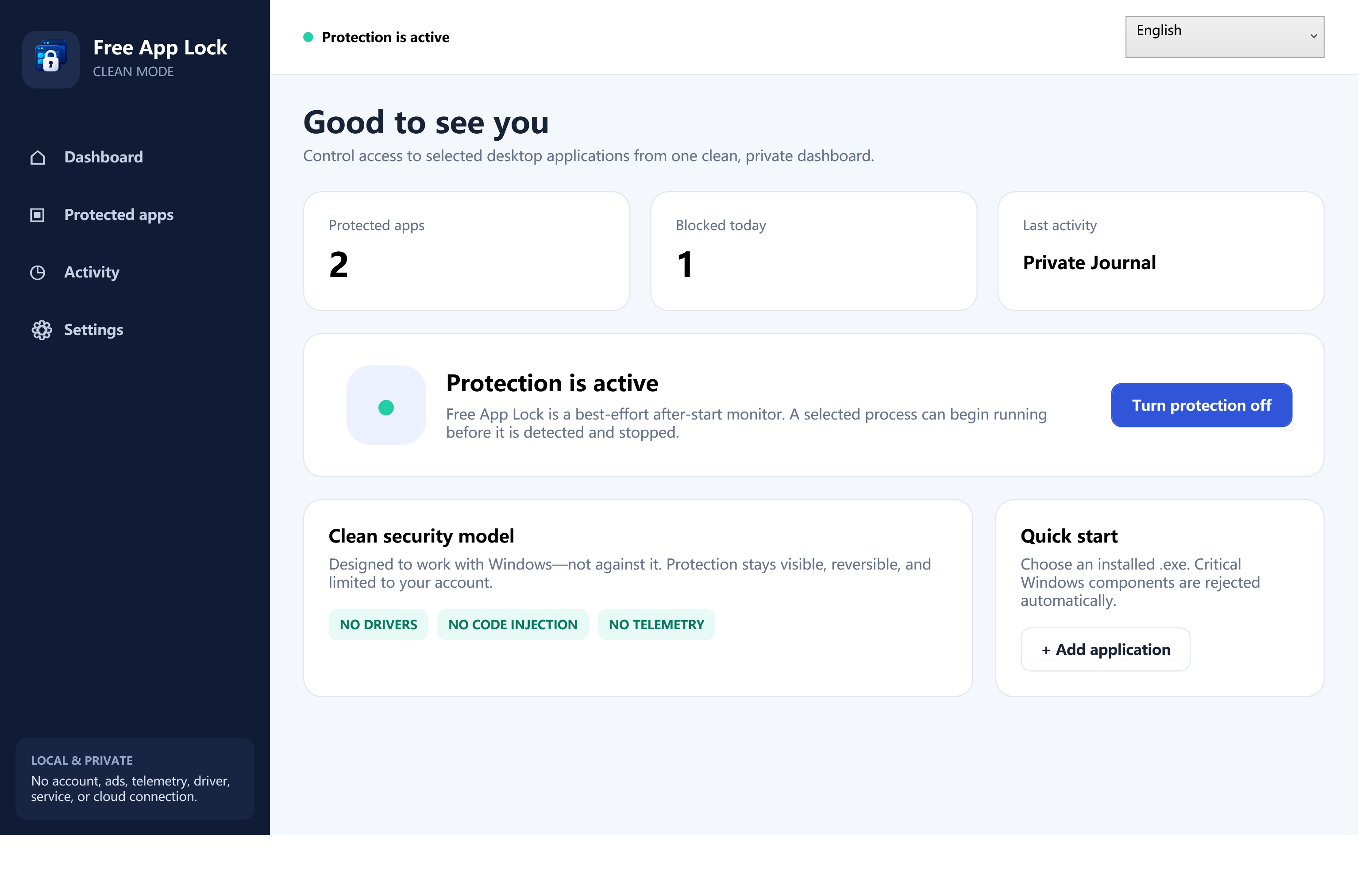
Free App Lock can ask for a master password or directly deny selected executables, with optional weekly schedules and file-identity verification. It uses local configuration, requires no Free App Lock account, and does not send the protected-app list or activity to a cloud service.
For business security policy
Evaluate Windows App Control or AppLocker with current Microsoft guidance. These technologies are designed for Windows application-control policy, not a friendly owner-password workflow. They require substantially more planning, testing, administration, and recovery discipline.
4. Protect the right executable—not the shortcut
A desktop or Start-menu shortcut is only a pointer. Select the real .exe file. Confirm that the location and publisher are expected before adding a rule.
When a protected application updates, its executable may be replaced. Free App Lock’s optional SHA-256 identity check can flag that change for owner review. Verify a legitimate update independently before trusting the new file.
5. Use schedules sparingly
Weekly schedules are easier to enforce when everyone understands them. Prefer one clear block of time over a maze of exceptions. Remember overnight ranges: a 10:00 PM–7:00 AM rule crosses midnight and should be tested on both sides of that boundary.
If the rule is fundamentally about total daily screen time, use the family-account tool designed for that purpose instead of reproducing it with many local schedules.
6. Decide between approval and direct denial
Password approval is appropriate when the owner may allow a one-time launch. It creates a deliberate checkpoint, but the password must not be typed where another person can watch or record it.
Direct deny is clearer when the app should stay unavailable throughout the active period. There is no approval prompt to negotiate around.
Both are after-start controls in Free App Lock. Windows starts the target before it is detected, so do not use this design where even brief execution is unacceptable.
7. Create a recovery plan before you need it
- Create a unique master password.
- Save the generated recovery code separately.
- Tell another trusted adult where the emergency record is stored, if appropriate.
- Export policies after major changes; credentials and activity are excluded.
- Document who is allowed to reset the local configuration.
If the master password is forgotten, the recovery code can create a new master password and rotate the recovery code without removing protected apps. If both credentials are lost, local reset clears the active configuration and returns to setup; it cannot show the old password.
8. Test with a non-critical app
Do not begin with accounting software, a document editor containing unsaved work, or a backup job. Use a harmless test app, close all data first, and verify:
- the correct executable was selected;
- the expected policy is active at the current day and time;
- approval or direct denial behaves as written;
- the local activity record is understandable;
- pausing, resuming, updating, and exiting require the intended owner action;
- the PC remains usable after sign-out and sign-in.
9. Avoid common shared-PC mistakes
Using the same password everywhere
The app-control password should not be the Windows, email, or banking password. A shoulder-surfed approval should not compromise another account.
Protecting critical Windows components
Do not attempt to lock sign-in, security, shell, service, or accessibility components. Free App Lock excludes critical paths, but the general rule remains: application control must not make Windows unrecoverable.
Claiming that monitoring is encryption
Free App Lock does not encrypt the target executable or its documents. File encryption, account permissions, application control, and time limits solve different problems.
Forgetting updates
A changed executable identity may be a legitimate update or something unexpected. Review it instead of automatically approving every replacement.
Ignoring data-loss risk
Force-closing an app may interrupt its writes. Keep important work saved, and do not schedule denial in the middle of a critical workflow.
10. Review the setup once a month
Remove rules that no longer serve a purpose, verify that application paths still exist, review identity warnings, check whether schedules still match family routines, and delete activity records you no longer need. A smaller understandable policy is usually safer than a large forgotten one.
A sample family-PC policy
- Parent accounts: separate standard accounts for daily use; one protected administrator credential for maintenance.
- Child account: Microsoft Family Safety for total screen time and app/game allowances.
- Shared finance utility: Free App Lock password approval in the intended adult profile.
- Late-night game rule: one documented weekly schedule, tested at start and end boundaries.
- Recovery: code stored in a parent’s password manager; current policy export stored separately.
- Work PC or high-risk environment: no reliance on a user-mode monitor; use professionally managed Windows application control.
Final perspective
The best shared-PC setup is not the one with the most locks. It is the one whose accounts, rules, limitations, and recovery path are understood by the people responsible for the machine. Start with separate Windows accounts, choose the control that matches the actual risk, and test every restriction before depending on it.
Use the step-by-step app-lock guide for configuration, the recovery guide for credential emergencies, and the application-control comparison when the requirement may be stronger than a local utility.