
“How do I block an app on Windows?” sounds like one question, but it hides several different goals. A parent may want a schedule for one game. A small-office owner may want a password prompt on a shared workstation. An enterprise security team may need a centrally enforced allowlist that even ordinary users cannot change.
Free App Lock, Microsoft AppLocker, Windows App Control for Business, and Microsoft Family Safety overlap in vocabulary, but they are not interchangeable. The safest choice starts with the threat model—not the longest feature list.
Comparison at a glance
| Tool | Best fit | Control model | Important limitation |
|---|---|---|---|
| Free App Lock | Personal/shared PC convenience | Per-user after-start monitoring, password approval or direct deny | Same-user processes and administrators can stop or bypass it |
| Microsoft Family Safety | Family accounts and screen-time goals | Account-connected app/game time limits and schedules | Requires family-account setup and is not a general enterprise allowlist |
| AppLocker | Managed Windows policy and defense in depth | Rules for executables, scripts, installers, DLLs, and packaged apps | Microsoft documents by-design limitations and recommends App Control for robust protection |
| Windows App Control | Organization-grade trusted-code policy | Windows policy decides whether apps and drivers are trusted | Requires careful policy design, testing, deployment, and recovery planning |
Free App Lock: fast local control for selected apps
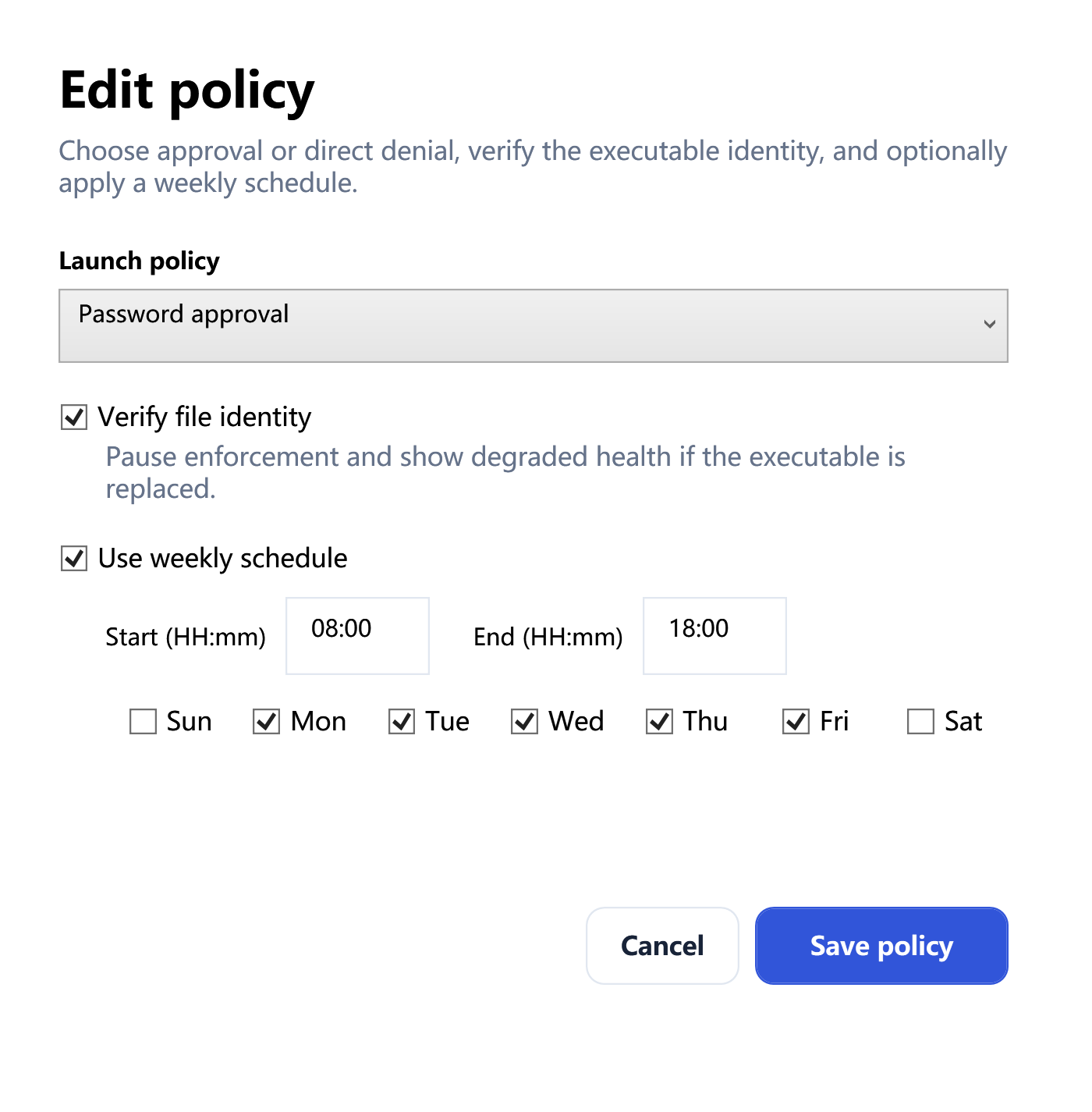
Free App Lock is designed for a person who controls a Windows PC and wants a clear rule for a few selected desktop applications. You choose the exact executable, then configure password approval or direct denial. Optional weekly schedules and SHA-256 identity checks add useful depth without requiring Group Policy, a management server, or a cloud account.
It is transparent about the boundary: Windows starts the target before Free App Lock detects and closes it. Early target code or side effects may occur. It runs as a standard user with no driver, Windows service, injection, API hook, executable patch, telemetry, advertising SDK, or hidden persistence.
Choose it when:
- you want a password prompt or direct deny for a small set of apps;
- you prefer a local UI over administrative policy tools;
- the user understands that equivalent Windows authority can bypass the monitor;
- you need weekly schedules, policy import/export, and a local activity view;
- you do not need pre-execution or administrator-resistant enforcement.
Microsoft Family Safety: account-based time limits
Microsoft Family Safety is usually the better answer when the central question is “how long may this child use this app?” Microsoft’s support documentation says family organizers can set daily app-and-game time and choose when use is allowed on connected Windows, Xbox, and Android devices.
That account-and-device model is valuable for families, but it is different from selecting an arbitrary local EXE and asking an owner for a password. It also depends on the family-member account and Microsoft’s connected family system.
Choose it when:
- the user is already in a Microsoft family group;
- screen time and daily allowances are the primary goal;
- limits should follow the family member across connected devices;
- you are comfortable with account-based management.
AppLocker: Windows policy with rules and audit mode
Microsoft describes AppLocker as application control for executables, scripts, Windows Installer files, DLLs, packaged apps, and packaged installers. Rules can use publisher information, paths, or hashes and can be assigned to users or security groups. It also supports audit-only deployment so administrators can study what a policy would affect before enforcing it.
Microsoft also explicitly calls AppLocker a defense-in-depth feature and says Windows App Control should be used when robust protection is the goal. That distinction matters. AppLocker remains useful, but a serious deployment requires rule design, default-rule awareness, event review, testing, and a recovery plan.
Choose it when:
- you administer Windows policy for specific users or groups;
- you need executable, script, installer, DLL, or packaged-app rules;
- audit-only rollout and Windows event evidence are important;
- you understand AppLocker’s platform and design limitations.
Windows App Control: trusted-code policy for stronger enforcement
Windows App Control for Business decides whether applications and drivers are trusted according to deployed policy. Microsoft documents policy options, signing-based rules, file rules, audit and enforcement modes, managed deployment, and known bypass considerations.
This is not a “click one app and add a password” tool. It is a security architecture that can affect Windows startup, drivers, scripts, installers, updates, and recovery. A poorly designed allowlist can block business-critical code, while a policy that is too broad may not reduce risk. Test in audit mode, define ownership, preserve recovery procedures, and use Microsoft’s current deployment guidance.
Choose it when:
- the goal is robust organization-grade application control;
- trusted apps and drivers must be defined by policy;
- security staff can design, audit, deploy, monitor, and recover the policy;
- the organization accepts the operational work of maintaining trust rules.
Decision guide by scenario
“Ask me before a family member opens one desktop app”
Start with separate Windows accounts. Free App Lock can add a visible password-approval layer within the intended account. Use Family Safety instead if the real requirement is time allowance tied to a child account.
“Block games during school-night hours”
Free App Lock offers local weekly schedules for selected executables. Family Safety is often preferable when the rule is part of broader child-account screen-time management.
“Prevent employees from running unapproved software”
Use managed Windows application control. Evaluate AppLocker and Windows App Control with Microsoft’s current documentation, licensing, device management, audit, and recovery requirements. A same-user desktop monitor is not the right security boundary.
“Detect when an allowed EXE is replaced”
Free App Lock can record a SHA-256 identity and request owner review after the file changes. AppLocker and Windows App Control offer different publisher, hash, path, and managed-policy models. Choose according to the required trust and administration level.
“I need everything to work offline”
Free App Lock operates locally after installation. AppLocker and Windows App Control are also Windows technologies, though organizational design and management may involve connected infrastructure. Family Safety is account-connected.
Security questions to answer before choosing
- Who is the person or process you are trying to restrict?
- Does that actor have the same Windows account or administrator rights?
- Must the app be stopped before any code runs?
- Is this one PC or a managed fleet?
- Do you need time limits, a password approval, or a trusted-code allowlist?
- Who owns policy testing, monitoring, updates, and emergency recovery?
- What happens if the control fails or blocks a critical app?
Bottom line
Free App Lock is intentionally the smaller tool: a local, understandable convenience control for selected apps. Family Safety manages family-account time. AppLocker provides Windows rule collections and audit/enforcement workflows. Windows App Control is the stronger architecture when robust trusted-code protection is the requirement.
Choosing the honest fit is more secure than forcing one product into a role it was not designed to fill.
For a home-PC implementation plan, continue with How to Lock Apps on a Shared or Family Windows PC. For a single local rule, use the step-by-step Free App Lock guide.