
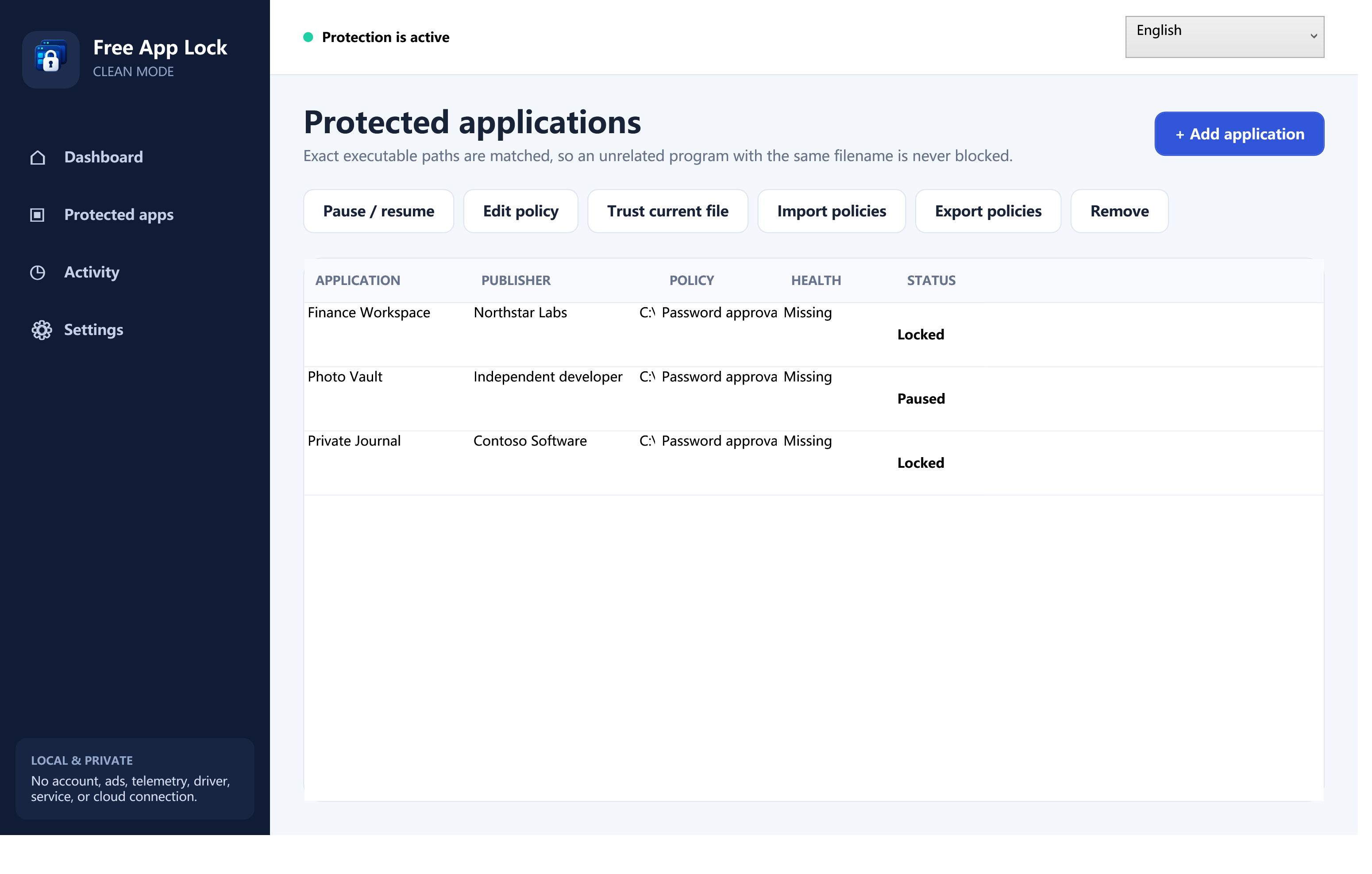
Updated August 14, 2026. If you share a Windows PC, you may want to prevent a child, guest, coworker, or even your future self from opening a particular game, browser, chat tool, finance application, or work utility. Windows offers several ways to control apps, but they solve different problems. This guide explains those differences first, then shows how to configure Free App Lock without pretending that a desktop utility is the same as an operating-system security boundary.
Quick answer: choose the control that matches the risk
- Use Free App Lock when you want a simple, local approval prompt or direct-deny rule for selected desktop apps in your own Windows account.
- Use Microsoft Family Safety when you manage a child account and need account-based screen-time or app-and-game limits across connected devices.
- Use AppLocker or Windows App Control when an organization needs centrally designed, audited, and enforced application-control policy.
- Use separate Windows accounts whenever different people share a PC. This is the most important foundation; an app-control tool should not be your only separation between users.
Microsoft documents that Family Safety can set per-app and per-game time limits for connected family accounts. Microsoft also describes AppLocker as a way to allow or deny executables, scripts, installers, DLLs, and packaged apps, while recommending Windows App Control when robust protection is the goal. Those are different use cases from a lightweight per-user utility.
What Free App Lock actually does
Free App Lock stores a local list of executable paths and watches for matching processes. When Windows starts a configured executable, the app applies the selected policy: it can ask for the master password or close the target directly. A policy can also be limited to selected days and times.
This is an after-start control. The target process starts before it is detected, so early code or side effects may occur. A person or process with the same Windows-user authority can stop or bypass the monitor. A local administrator has still broader control. Free App Lock therefore works best as a convenience layer on a personal or shared PC—not as protection against an administrator, malware, or a determined user with equivalent access.
Before you begin
- Use Windows 11 or Windows 10 x64.
- Install Microsoft .NET Desktop Runtime 8 x64 if Windows does not already have it. The Free App Lock installer can open or download the official Microsoft runtime.
- Close valuable work in any app you plan to test. Force-closing a program can interrupt unsaved writes.
- Keep a separate Windows account for each person who uses the PC whenever possible.
Step 1: create the owner credentials
On first launch, choose a master password. Use a unique password that is not reused for email, banking, or your Windows account. Free App Lock then shows a recovery code. Save that code in a password manager, a printed emergency record, or another place that is not accessible to the person whose app access you are managing.
The recovery code is not a second everyday password. It is the owner’s recovery path. When used, it creates a new master password and rotates to a new recovery code, so the previous recovery code is no longer the one to keep.
Step 2: add the exact application executable
Open the Protected apps page and choose Add apps. Select the real executable file, not a shortcut. A shortcut can point somewhere else later; the executable path is the policy target.
Free App Lock excludes critical Windows components from selection. For an ordinary third-party app, check the publisher and file location before adding it. Typical installed software lives under C:\Program Files or C:\Program Files (x86), but portable software may live elsewhere.
Step 3: choose approval or direct denial
Password approval shows an owner-verification prompt when the target is detected. Use this when the app should remain available after an authorized person approves it.
Direct deny closes the detected target without offering an approval prompt. Use this when the rule should be unambiguous during its active period.
Neither policy encrypts, patches, or changes the target executable. The target remains a normal Windows file.
Step 4: add a schedule only when it clarifies the rule
You can apply a policy on selected weekdays and within a time range, including a range that crosses midnight. For example, a game can require approval from 9:00 PM until 7:00 AM on school nights while remaining unrestricted at other times.
Keep the rule easy to explain. If a schedule has many exceptions, a family-account tool or managed Windows policy may be more appropriate.
Step 5: verify the executable identity
Path matching answers “which location?” but software updates can replace the file at that location. Optional SHA-256 identity verification records the selected executable’s current identity. If a later file no longer matches, Free App Lock marks the target for owner review rather than silently trusting the replacement.
After a legitimate update, independently check the publisher and source before using Trust current file. Do not approve a changed file simply because an app asks you to.
Step 6: test the policy safely
- Save work in the target app and close it.
- Confirm that Free App Lock is running.
- Start the target once.
- Verify that the expected approval or denial behavior occurs.
- Check the local activity page for the corresponding event.
If the target continues running, check the exact EXE path, the policy schedule, whether monitoring is paused, and whether the file identity needs review. Do not repeatedly force-close an app that is actively writing important data.
Useful controls beyond a single rule
Import and export
Policy export is useful when you own multiple PCs. The export contains bounded policy records; it does not include the master password, recovery code, or activity history. Review imported executable paths because drive letters and installation locations can differ between computers.
Activity history
The application keeps a bounded local history of up to 500 events. You can search it and export formula-safe CSV for your own review. The product does not require an account and does not send the app list or history to a cloud service.
Ten interface languages
The interface supports English, Spanish, Brazilian Portuguese, French, German, Japanese, Simplified Chinese, Hindi, Indonesian, and Arabic. Arabic uses a right-to-left layout.
What to do if you forget the master password
Choose Forgot master password? in an owner-verification window. Enter the saved recovery code, create a new master password, and save the newly generated recovery code. Existing protected apps, policies, settings, and activity remain available.
If both credentials are unavailable, the explicit Reset local data option is the last resort. It clears the active protected list, credentials, startup preference, and activity, then returns to first-run setup. It preserves encrypted copies of the previous configuration for diagnosis, but it does not reveal or recover the old password.
When Free App Lock is not the right tool
Use a different control when you need enforcement against someone with administrative access, protection against malicious code, pre-execution blocking, centralized deployment, or security guarantees across many business PCs. Microsoft’s documentation specifically positions Windows App Control for robust application-control protection and describes AppLocker as defense in depth with known limitations.
For a family group, Microsoft Family Safety may be a better fit when the real need is daily time allowance rather than an owner password on one PC.
Frequently asked questions
Does Free App Lock hide or encrypt EXE files?
No. It leaves the target file unchanged and applies a process-monitoring policy after Windows starts it.
Can I lock a portable app?
Yes, if you select its actual executable and it remains at the configured path. Enable file-identity verification when replacement risk matters.
Does it work without an internet connection?
Yes. The application itself is local and has no account or telemetry connection. An internet connection is only needed if the installer must download Microsoft .NET Desktop Runtime 8 x64.
Can another administrator bypass it?
Yes. Treat Free App Lock as a per-user convenience control, not an administrator-resistant security boundary.
Next: Download Free App Lock, save your recovery code before adding policies, and test one non-critical app first. For a deeper decision, read AppLocker vs Windows App Control vs Free App Lock. If access is already lost, use the master-password recovery guide.