Prepare: Identify, Save, Exit
- Check the shortcut’s target or the app’s installation folder. Select the executable you intend to restrict, rather than an installer or another copy.
- Save your work and close the target application yourself. Protection does not stop an existing process.
- Use a local NTFS file you are authorized to manage. Keep an up-to-date backup of important work.
Protect: Review the File Before Confirming
Open Free App Lock. On first use, create and confirm a management password of at least eight characters. Choose Add EXE and select the target.
The confirmation explains that Windows will stop this account reading, copying or running that file. Its bytes and embedded signature are left alone. Read that notice and confirm only when it matches your intention.
Check: Read the Actual Result
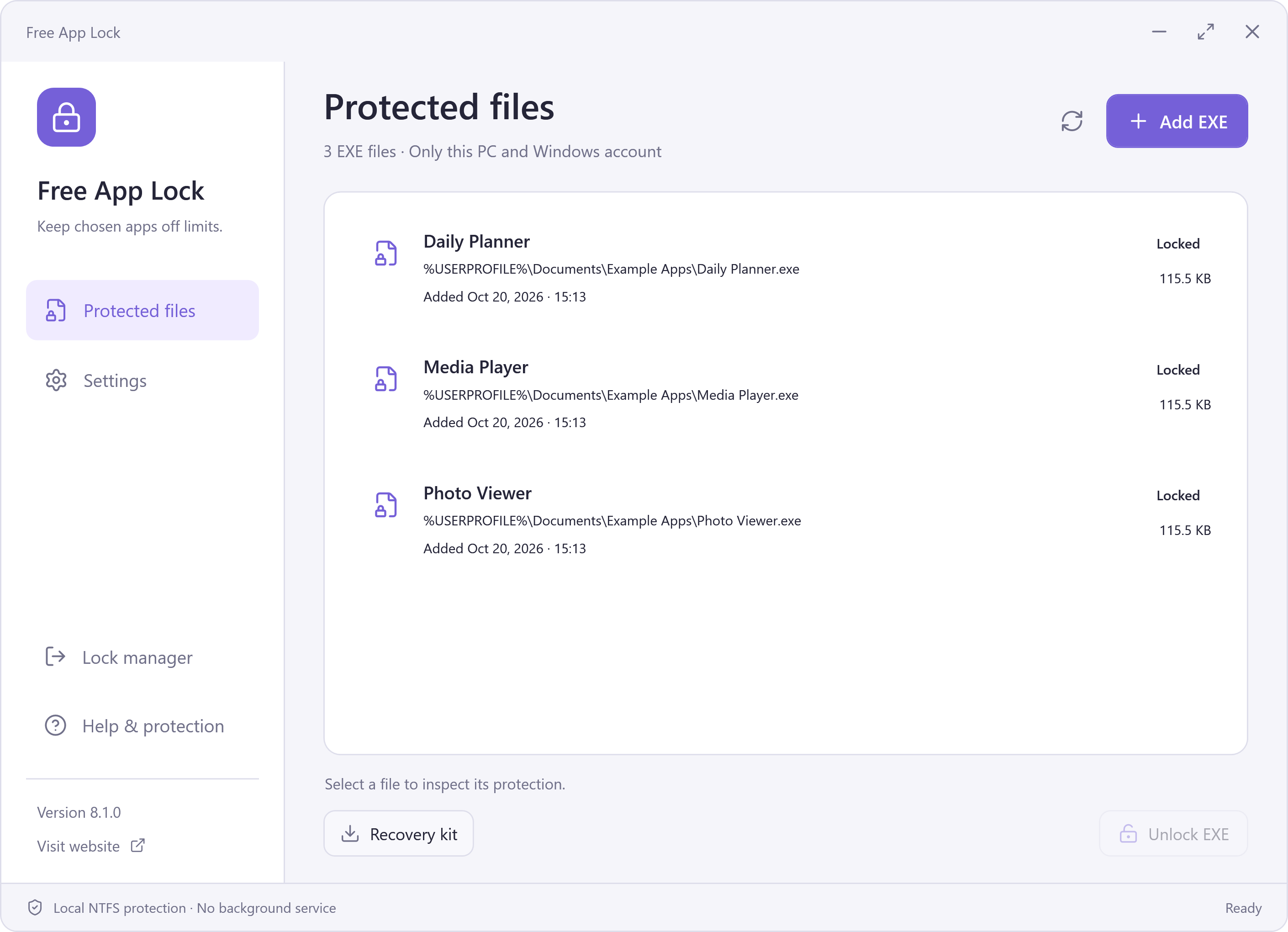
Wait for the operation to finish, then review the file’s path and actual protection state in the list. Refresh if you need to inspect it again. A permissions error is not a successful restriction; keep the displayed message for troubleshooting.
Leave Yourself a Route Back
Export a current recovery kit and retain the password used for that export. When you want the file accessible again, follow the restoration sequence. Opening the restricted EXE directly produces a Windows access error, not a password entry window.